
How to Lock or Password-Protect an NFC Tag
Permanent lock or password? Compare both options, see what each one protects against, follow the iPhone steps and learn what happens if you forget a password.
You can protect an NFC tag in two ways. A permanent lock makes the tag read-only forever, and it cannot be undone. A password (on NTAG213, NTAG215, NTAG216 and MIFARE Ultralight EV1 chips) stops anyone who does not know it from changing the tag, and you can remove it later. In both cases phones can still read the tag and open your link. The only exception is a password-protected tag where you also turn on read protection.
Use a lock when the content will never change. Use a password when you may need to update the tag later.
Permanent lock vs password: quick comparison
| Permanent lock | Password protection | |
|---|---|---|
| What it does | Makes the tag read-only forever | Requires a 32-bit password to write (and, if you choose, to read) |
| Can you undo it? | No, never | Yes, with the password |
| Can you change the content later? | No | Yes, with the password |
| Who can read the tag? | Everyone | Everyone, unless you also protect reading |
| Chips | NTAG213/215/216 and other lockable tags | NTAG213/215/216 and MIFARE Ultralight EV1 |
| Stops overwriting | Yes, by anyone, including you | Yes, by anyone without the password |
| Stops a fake sticker on top | No | No |
| Biggest risk | A mistake in the content is permanent | A forgotten password is permanent |
| Best for | Public tags whose content will never change | Tags you may want to update |
What each option protects against
Permanent lock
Locking sets the tag's permanent lock bits. After that, no app and no device can erase or rewrite the content, including you.
A lock protects against:
- someone with a phone and a free app replacing your link with their own;
- accidental erasing or rewriting by staff or by you.
A lock does not protect against:
- a fake sticker placed over the tag, or the tag being removed and replaced;
- copying: anyone can still read the tag, so anyone can write the same content to a new tag;
- your own mistakes: a wrong letter in the link stays there forever.
Password protection
NTAG21x and MIFARE Ultralight EV1 chips support a 32-bit password and a 16-bit acknowledgement value (PACK). When a password is set, the chip refuses to write without it. You can also choose to protect reading, so phones without the password cannot see the content at all.
A password protects against:
- casual overwriting by visitors, customers or staff;
- accidental changes, while you can still update the tag yourself.
A password does not protect against:
- a determined attacker. A 32-bit password has about 4.3 billion possible values. It stops casual overwriting, but it is not strong cryptography;
- a fake sticker on top, just like a lock.
Do not protect reading on public tags. Visitors' phones do not know your password. If reading is protected, they cannot open your link at all.
How to lock an NFC tag in TagForge
A lock is forever, so check the content first.
- Write the tag in the Write tab with Verify after writing turned on. The app reads the tag back to confirm what was written.
- Test it like a visitor would: on an iPhone XS / XR or later, turn the screen on and hold the top edge of the phone against the tag. The link notification should appear.
- Go to Tools → Lock permanently.
- If the tag has a password, enter it in the password field. For a normal tag, leave the field empty.
- Type the confirmation word shown on the screen. This step makes sure nobody locks a tag by accident.
- Tap Lock tag forever and hold the top of your iPhone against the tag until it confirms.
- Scan the tag again on the Scan tab. The tag report shows the lock status.
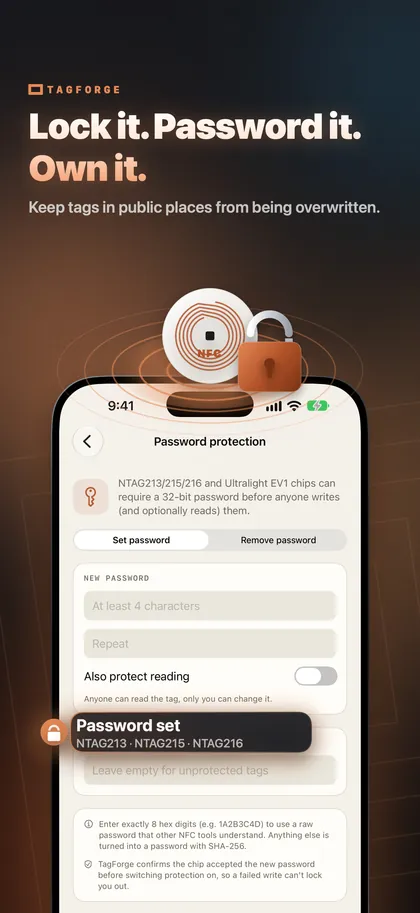
How to set a password in TagForge
- Go to Tools → Password protection and choose Set password.
- Type the new password twice.
- Decide about Also protect reading. Leave it off for public tags. Turn it on only for private tags that nobody else needs to read.
- If the tag already has a password, enter it under Current password.
- Tap Set password and hold the tag against the top of your iPhone.
- Save the password in a password manager immediately.
To change the content later, prepare it in the Write tab and enter the password in the Tag password field before you write. To remove the protection, choose Remove password, enter the current password and hold the tag.
What happens if you forget the password
The tag keeps its current content. Without the password you cannot rewrite or erase it, and there is no reset.
- If reading is not protected, the tag still works. It behaves like a locked tag: phones read it, but nobody can change it.
- If reading is protected, phones cannot see the content, and the tag is no longer useful. Replace it with a new one.
To avoid this:
- Save each tag password in a password manager the moment you set it.
- For many tags, use one password per batch or per location, and keep a list of which tags use which password. Naming tags and their places in the TagForge Library helps, but keep the passwords themselves in your password manager.
- Use a password that you do not use anywhere else.
Best practice for tags in public places
Anyone with a phone can try to rewrite an unprotected tag. For tags on tables, posters, shop windows or equipment, follow this order:
- Link to a stable page on your own domain, not to a link shortener. If the content needs to change later, you change the web page, and the tag can stay locked. Short links also hide the destination, which makes careful visitors suspicious.
- Write and verify. Use Verify after writing, then test with a real phone. Choose a tag with enough memory for your content; see NTAG213 vs NTAG215 vs NTAG216.
- Then protect. Lock the tag if the link will never change. Set a write password if you may need to update it on site.
- Make the real tag easy to recognise. Print your logo and a short "Tap here" label on it, so a sticker on top looks wrong.
- Check regularly. Look for stickers on top, and scan one tag during each check to confirm it still opens your link.
New to writing tags? Start with how to write NFC tags with iPhone.
Honest limits
- A 32-bit password is not strong cryptography. It is good against casual overwriting. Do not rely on it to protect money, access or private data.
- A lock is permanent. If the link on a locked tag needs to change, you need a new tag.
- Locking does not hide anything. Anyone can read a locked tag and copy its content.
- No protection stops a fake sticker. A locked or password-protected tag can still be covered by a fake tag or QR code. That is how most real tag scams work. Learn how to spot fake NFC and QR stickers.
FAQ
Can a locked NFC tag be unlocked?
No. A permanent lock makes the tag read-only forever, and no app or device can undo it. If the content must change, use a new tag.
How do I reset an NFC tag if I forgot the password?
You cannot. Without the password the tag cannot be rewritten or erased. If reading is not protected, it keeps working with its current content. Otherwise, replace it.
Does a password stop people from reading my NFC tag?
Only if you turn on read protection. By default the password protects writing: anyone can still read the tag, which is what you want for a public tag.
Can an iPhone lock NFC tags?
Yes. Locking a tag and setting a password are write operations, so an iPhone can do both with an app that supports them. Writing tags with an app needs iOS 13 or later.