
Share Your Wi-Fi with an NFC Tag
Make an NFC tag that shares your Wi-Fi: what Android and iPhone guests see, why to add a QR code, how to write the tag and how to keep your network safe.
An NFC Wi-Fi tag stores your network name, security type and password, so a guest can join by holding a phone against it. Android phones join directly from the tag. An iPhone needs an NFC app to read it, and then iOS asks whether to join, so for iPhone guests you should add a Wi-Fi QR code, which the Camera app understands without any extra app.
This guide shows how to set up both, where to place the tag and how to keep your network safe.
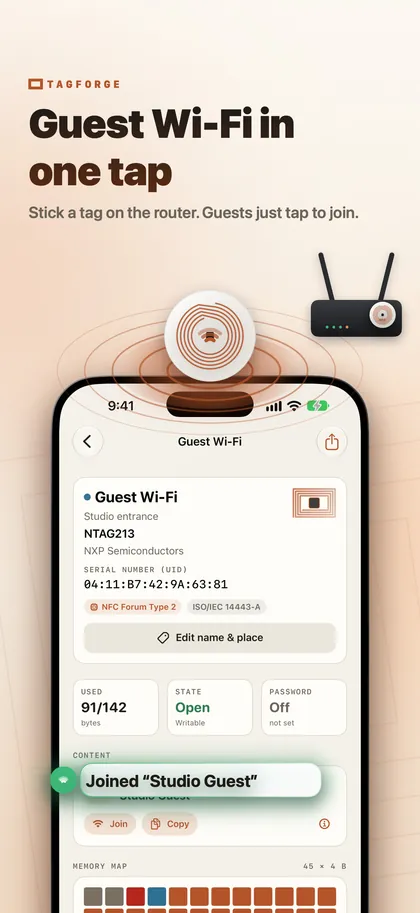
How an NFC Wi-Fi tag works
A Wi-Fi tag uses the NFC Forum Wi-Fi record, often called a WSC record. It holds what a phone needs to connect: the network name (SSID), the security type and the password.
Two things follow from this:
- The password is stored as readable data. Anyone who scans the tag with an NFC app can see it. Treat the tag like a card with the password printed on it.
- The tag does not update itself. When you change the Wi-Fi password on your router, you must rewrite the tag.
What guests see on Android and iPhone
- Android phones join the network by tapping the tag.
- iPhone XS / XR and later read tags in the background, but only links: web links and some phone, mail and maps links. A Wi-Fi record is not handled on its own, so the guest needs an NFC app. In TagForge, for example, the guest scans the tag, taps Join, and iOS asks for permission to join the network.
- iPhone 7, 8 and X have no background reading at all, so the QR code is the easiest option for them.
- Any iPhone, without an app: the Camera understands a Wi-Fi QR code, so a printed code needs no extra app.
The practical answer is to use both. Put the NFC tag and a Wi-Fi QR code on the same card or sign. Android guests tap, iPhone guests scan the code with the Camera, and anyone with an NFC app can tap too. Our comparison of NFC and QR codes explains why the two work well together.
To make the QR code, use a Wi-Fi QR code generator you trust, because you type your password into it. Enter the same network name, security type and password as on the tag. If you have the Wi-Fi code as text (it starts with "WIFI:"), copy it, and TagForge can paste it straight into a Wi-Fi record.
How to write a Wi-Fi tag with your iPhone
You need a blank NTAG213, NTAG215 or NTAG216 tag. The steps use TagForge, which needs iOS 17 or later (iPhone XS / XR, iPhone SE 2nd generation or newer).
- Open the app, go to the Write tab and add a Wi-Fi network record.
- Type the network name (SSID) exactly as it appears in your Wi-Fi settings, including capital letters, spaces and symbols.
- Choose the security type that matches your router, for example WPA2 Personal.
- Enter the password. Check it twice: one wrong character and nobody can join.
- Look at the size meter. It shows whether the record fits on NTAG213 or needs a larger tag. Long network names and passwords take more space.
- Keep Verify after writing turned on. Start writing and hold the top edge of the iPhone against the tag until the app confirms. It reads the tag back to check the content.
- Test with two phones. Tap with an Android phone if you have one, then scan with an iPhone and tap Join.
- Need the same tag for every table or room? Tap Save as template, or use Copy in the Tools tab to write the content to more tags.
Share a guest network, not your main one
- Use a guest network. If your router offers one, turn it on and share only that. Check the router settings to make sure guests are kept apart from your main network, where your computers, printers and cameras are.
- Use WPA2 Personal with a long password that is easy to type, such as three or four random words. Avoid the Open (no password) and WEP settings, which give little or no protection.
- Remember that the tag reveals the password to anyone with an NFC app. That is fine for a guest network you share anyway. It is also why your main network should never be on a tag in a public place.
- Change the guest password from time to time, for example when an employee leaves, and rewrite the tag.
Where to put the tag
- Café or restaurant: on table stands and at the counter, next to the printed QR code. A tag on every table is easier than one tag that everyone must walk to. For more ideas, see NFC tags for small businesses.
- Holiday rental, such as an Airbnb: in the welcome folder, on a framed card by the entrance, or next to the house rules. Avoid the fridge door: metal detunes normal tags, so use an on-metal tag there.
- Office: at reception, in meeting rooms and in the waiting area. Share the guest network only.
- Home: by the front door, or on a coaster in the living room.
Place the tag where a phone can reach it easily, at table or counter height. The range is only about 1–4 cm (under 1.5 in), and the iPhone's antenna is at the top edge. Add a short label such as "Wi-Fi: tap here or scan the code" so guests know what to do.
Protect the tag from changes
An unprotected tag can be rewritten by anyone with an NFC writing app. On a public table, someone could replace your Wi-Fi record with a link to a fake page. Two options stop that:
- Password protection (best for Wi-Fi tags). In the Tools tab, set a password and choose the option that protects writing only. Anyone can still read the tag, but only someone with the password can change it, so you can rewrite it when your Wi-Fi password changes. It stops casual overwriting; it is not strong cryptography. Keep the tag password somewhere safe: if you forget it, you cannot rewrite the tag.
- Permanent lock. The tag becomes read-only forever, and this cannot be undone. The app asks you to type a confirmation first. Lock a Wi-Fi tag only if its password will never change. Otherwise you will need a new tag every time.
Do not protect reading as well, or phones without the password will not see the Wi-Fi details at all. Our guide to locking and password-protecting NFC tags covers both options step by step.
FAQ
Can an iPhone connect to Wi-Fi by tapping an NFC tag?
Not on its own. iPhone does not handle Wi-Fi records in background tag reading. With an NFC app, the guest scans the tag and iOS asks whether to join. Without an app, a Wi-Fi QR code scanned with the Camera is the easiest way.
Is it safe to put my Wi-Fi password on an NFC tag?
Anyone who scans the tag with an app can read the password, so only put a guest network on it. Protect the tag with a password so nobody can overwrite it.
What happens when I change my Wi-Fi password?
The tag still holds the old password, so rewrite it. If the tag is password-protected, you need its tag password to change it. A permanently locked tag cannot be rewritten; replace it with a new one.
Which NFC tag is best for a Wi-Fi tag?
Any NTAG213, NTAG215 or NTAG216 works if the record fits, and the size meter shows which one you need. On metal, use an on-metal tag. Our NTAG comparison explains the differences.