
How to Use NFC on iPhone: The Complete Guide
Which iPhones have NFC, where the antenna is, how to scan a tag with or without an app, what iPhone does on its own, and how to start using NFC tags.
Every iPhone from iPhone 7 onward can read NFC tags, and there is no switch to turn NFC on. On iPhone XS, XR and later, wake the screen and hold the top of the phone against a tag. A notification appears, and you tap it to open the link. For anything more, such as Wi-Fi tags, contact cards or writing your own tags, you need an app.
Which iPhones have NFC?
All iPhones from iPhone 7 onward have an NFC reader that apps can use. The main difference between models is background reading: whether the iPhone reacts to a tag without any app open.
| Feature | iPhone 7, 8 and X | iPhone XS / XR and later |
|---|---|---|
| Read tags in an app (iOS 11 or later) | Yes | Yes |
| Write tags in an app (iOS 13 or later) | Yes | Yes |
| Background reading, no app open | No | Yes |
| NFC Tag Reader in Control Center (iOS 14 or later) | Yes | Not needed |
| NFC automations in the Shortcuts app | No | Yes |
To read or write tags, you need iPhone 7 or later. To use tags without opening an app, or to trigger Shortcuts automations, you need iPhone XS, XR or a later model.
Where is NFC on iPhone?
There is no NFC switch on iPhone and nothing to turn on in Settings. NFC is ready whenever it is needed.
The NFC antenna sits at the top edge of the iPhone, on the back, near the cameras. This is the part that must touch the tag. The range is short: about 1–4 cm (under 1.5 in). If you hold the middle or the bottom of the phone over a tag, the antenna is too far away and nothing happens.
How to scan an NFC tag with iPhone
On iPhone XS, XR and later:
- Wake the screen. You do not need to open an app.
- Hold the top edge of the back of the iPhone against the tag.
- Keep the phone still for a moment. Do not swipe across the tag.
- A notification appears. Tap it to open the link.
On iPhone 7, 8 and X:
- Go to Settings → Control Center and add NFC Tag Reader (iOS 14 or later).
- Open Control Center and tap NFC Tag Reader. You can also start a scan in an NFC app.
- Hold the top of the iPhone against the tag until the result appears.
Background reading vs scanning with an app
Background reading is the automatic mode on iPhone XS, XR and later. The iPhone looks for tags while the screen is on. It reacts to tags that hold a web link, and to some other links, such as a phone number, an email address or a map location. It never opens anything by itself: you always see a notification first.
Background reading is not available when:
- the iPhone has not been unlocked since it was restarted
- the camera is in use
- Apple Pay or Wallet is in use
- another app is scanning for tags
- Airplane Mode is on
Scanning with an app works on every iPhone from iPhone 7. You tap a scan button, a sheet asks you to hold the iPhone near the tag, and the app shows what it found. An app can show much more than a notification: every record on the tag, details about the chip, and types of content that iPhone does not handle on its own.
What can an NFC tag contain?
An NFC tag is a small chip with an antenna, inside a sticker, a key fob or a card. NFC works at 13.56 MHz. Many stickers and key fobs use NXP NTAG213, NTAG215 or NTAG216 chips. They have 144, 504 or 888 bytes of user memory. An NTAG213 holds a web link of about 130 characters. An NTAG216 has room for a full contact card.
A tag stores its content as one or more records. Here is what iPhone does with common records:
| Content on the tag | iPhone on its own (XS / XR and later) | With an app |
|---|---|---|
| Web link | Notification; tap to open | Shows and opens the link |
| Phone, email or map link | Notification; tap to open | Shows and opens it |
| Wi-Fi network | Not handled | App reads it; iOS asks "Join network?" |
| Contact card (vCard) | Not handled | App reads and shows it |
| Any tag, even a blank one | Can trigger a Shortcuts automation you set up | Not needed |
About the last row: a Shortcuts automation recognises the tag itself, not its content, so even blank tags usually work. For practical examples, see 15 ideas for NFC automations.
You also need an app to write tags, to see the chip type and free memory, to erase a tag, or to protect it with a lock or a password.
Apple Pay and Wallet are not the same as tags
Apple Pay also uses NFC, but in the opposite direction. When you pay, the iPhone behaves like a card, and the terminal reads it. When you scan a tag, the iPhone is the reader.
Third-party apps cannot make the iPhone behave like an NFC card. Card emulation is limited to Apple Wallet and, in some regions, specially approved apps. Wallet covers Apple Pay, transit cards, car keys, hotel keys and some corporate and student badges from participating providers.
So no app can turn your iPhone into a copy of your office badge or gym fob. If you want your access card on your phone, ask the building or the provider whether they support Apple Wallet or mobile access. Read more in Can you copy an NFC card with an iPhone?
First steps with TagForge
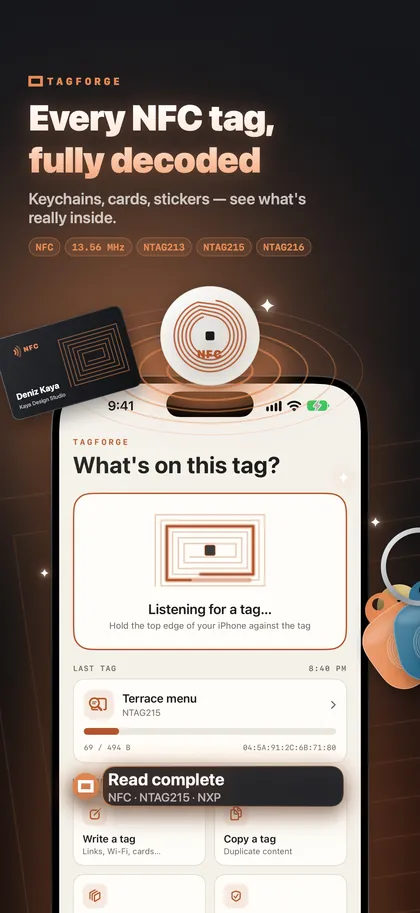
TagForge is an iPhone app for reading, writing and protecting NFC tags. It needs iOS 17 or later, so it runs on iPhone XS, XR, iPhone SE (2nd generation) and newer models. A simple way to start:
- Scan a tag you have. Open TagForge, tap Scan and hold the tag at the top of the iPhone. The report shows the chip and its maker (for example "NTAG215 · NXP"), memory used and total, lock and password status, and every record, decoded.
- Write your first tag. Choose a web link. The size meter shows whether it fits an NTAG213, 215 or 216. Turn on "Verify after writing", so the app reads the tag back after writing. Full steps: How to write NFC tags with iPhone.
- Test it without the app. Close the app, wake the screen and tap the tag. A notification should appear.
- Name it. Save the tag in the Library with a name and a place, such as "Front door", so you always know which tag is which.
- Check unknown links. Before you open a link from a tag in a public place, check it with Link Shield. The check runs entirely on the iPhone, and nothing is sent anywhere.
The app works offline and needs no account.
FAQ
Which iPhones have NFC?
Every iPhone from iPhone 7 onward has NFC that apps can use to read tags. iPhone XS, XR and later models also read tags in the background, without an app. iPhone 7, 8 and X need an app or the NFC Tag Reader control in Control Center.
How do I turn on NFC on my iPhone?
You do not need to. There is no NFC switch on iPhone. Wake the screen and hold the top of the phone against the tag.
Is it safe to tap an unknown NFC tag?
Reading a tag cannot install anything or take data from your phone by itself. It only hands over a link or data, and iOS asks before opening it. The real risk is a fake sticker placed over a real one, which leads to a phishing page. Never enter card details or passwords on a page you reached from a public tag.
Why does my iPhone not react to an NFC tag?
Common reasons are holding the wrong part of the phone, a dark screen, an empty tag, a Wi-Fi or contact record, or an unsupported chip. Work through 12 fixes for NFC problems on iPhone.