
iPhone NFC Automations: 15 Shortcuts Ideas
Set up an NFC automation in the iPhone Shortcuts app step by step, then try 15 practical ideas for home, car, desk, health and family, plus placement tips.
On iPhone XS, XR and later, a tap on an NFC tag can run a shortcut. Open the Shortcuts app, go to Automation, choose NFC, scan the tag and add actions. On iOS 17 and later, choose Run Immediately, and the actions run as soon as you tap, with no confirmation. The tag does not need any content: the automation recognises the tag itself, so even a blank tag usually works.
What you need
- iPhone XS, XR or later. iPhone 7, 8 and X cannot run NFC automations. See which iPhones can do what with NFC.
- iOS 17 or later if you want automations to run without asking.
- NFC tags. Small, simple tags are enough, because the automation recognises the tag, not its content. NTAG213 stickers work well. For metal surfaces, such as a fridge, a washing machine or a car, buy "on-metal" tags, because metal detunes normal tags. More on choosing: NTAG213 vs NTAG215 vs NTAG216.
How to create an NFC automation, step by step
- Open the Shortcuts app and tap Automation at the bottom of the screen.
- Tap + (or New Automation) and choose NFC from the list.
- Tap Scan and hold the top edge of the iPhone against the tag. Give the tag a clear name, such as "Bedside".
- Select Run Immediately (iOS 17 and later), so the automation runs without asking for confirmation.
- Tap Next, then choose New Blank Automation, or pick a shortcut you already have.
- Add your actions, for example Set Focus or Start Timer, and tap Done.
- Test it. Wake the screen, then touch the top of the iPhone to the tag.
The automation is linked to that physical tag, not to what is written on it. If you replace a tag, edit the automation and scan the new one. Copying the old tag's content to a new tag does not move the automation.
15 NFC automation ideas
Each idea lists where to put the tag and which actions to add. The action names are the ones you search for in the Shortcuts app.
Home
1. Good night (bedside table). Set Focus to Sleep, run a Home scene that turns off the lights, and use Toggle Alarm to switch on your morning alarm.
2. Leaving home (by the front door). Run an "Away" Home scene, then Show Alert with a short checklist: keys, wallet, windows.
3. Laundry (on the washing machine, with an on-metal tag). Start Timer for the length of the wash cycle, for example 90 minutes, so you know when to unload it.
Car
4. Start driving (on the dashboard). Set Focus to Driving, play a playlist or podcast, and open directions home in Maps. Tap before you start the engine, never while driving. Do not put the tag on the metal plate of a magnetic phone mount.
5. Where did I park? (on your car key ring). Get Current Location, then save it with Append to Note. Tap your keys with the phone when you leave the car.
6. Mileage log (inside the glovebox). Ask for Input for the odometer reading in kilometres, then Append to Note with the current date. At the end of the month, the note is your log.
Desk
7. Focus session (on the desk). Set Focus to Work and Start Timer for 25 minutes.
8. Work log (under the monitor). Use Choose from Menu with two options, "Start" and "Stop". Each option appends the current date and time to a note. After a week, you have a simple time sheet.
9. End of day (by the office door). Turn off the Work Focus with Set Focus, Ask for Input for tomorrow's first task, then Add New Reminder with that task.
Health
10. Water (on your bottle). Log Health Sample with the type Water and an amount such as 250 ml (about 8 fl oz). On a metal bottle, use an on-metal tag.
11. Medicine or vitamins (on the box). Append "Taken" and the current time to a note. When you are not sure whether you took today's dose, the note tells you.
12. Workout (on your gym bag). Set Focus to Fitness, play your workout playlist, and Start Timer for your session.
Family
13. "Home safe" message (by the front door). On your child's iPhone, use Send Message to send "Home safe" to a parent. Automations are personal, so you set this one up on the child's iPhone.
14. Pet feeding (on the food container). Append "Fed" and the current time to a shared note, so everyone at home can see whether the pet has already eaten.
15. Shopping list (on the fridge, with an on-metal tag). Use Dictate Text, then Add New Reminder to a shared shopping list in Reminders.
Tips: labels, placement and privacy
- Label every tag. Use the same name in Shortcuts and on a small label on or next to the tag. Labels save time when you have many tags.
- Place tags where the top of the phone can reach them. The range is about 1–4 cm (under 1.5 in). Choose spots where you tap on purpose. Avoid places where the phone often lies on top of a tag, such as a phone stand, or the automation may run when you do not want it to.
- Wake the screen first. Like all background reading, automations need the screen on. If an automation does not run, see 12 fixes for NFC problems on iPhone.
- Think about privacy. Your automation runs only on your iPhone. Other people who tap the tag only see what is written on it, and a blank tag has no content to show. Do not write private data, such as a Wi-Fi password or your home address, onto a tag in a shared or public place.
- Be careful with Run Immediately. For actions that you would not want to run by mistake, such as opening a garage door, keep the confirmation step.
Where TagForge fits
Shortcuts does not need anything on the tag. But one tag can do two jobs: trigger your automation and carry a web link for other people. A tag on the fridge can run your shopping-list automation, while the same tag gives guests a link to your house rules or the family calendar. Write the link with TagForge (it needs iOS 17 or later), then test how your own iPhone behaves with both. The writing steps are in How to write NFC tags with iPhone.
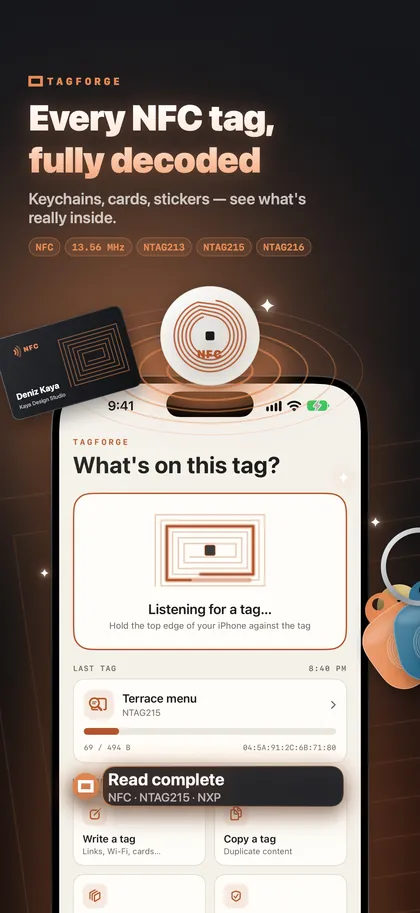
The app also helps you keep track of your tags. Scan a tag to see its chip and memory, then save it in the Library with a name and a place, such as "Kitchen fridge".
TagForge adds two actions to Siri and the Shortcuts app:
- Scan tag opens the app and starts reading a tag.
- Write template writes one of your saved templates to a tag. If you replace tags often, save the content once as a template. Then you can write each new tag from a shortcut or with Siri.
FAQ
Which iPhones support NFC automations?
iPhone XS, XR and later. iPhone 7, 8 and X can read and write tags with an app, but they cannot run NFC automations.
Can an NFC automation run without asking?
Yes, on iOS 17 and later. Choose Run Immediately when you create the automation.
Do I need to write anything to the NFC tag?
No. The automation recognises the tag itself, so even blank tags usually work. You can still write a link to the tag for other people.
Will my NFC automation work on someone else's iPhone?
No. Automations are personal and run only on the iPhone where you created them. Another iPhone only sees what is written on the tag.