
How to Write NFC Tags with iPhone (Step by Step)
Write a link, Wi-Fi network or contact card to an NFC tag with your iPhone: which tags to buy, how to check the size, then verify, test and lock the tag.
Any iPhone from iPhone 7 onward can write NFC tags, as long as it runs iOS 13 or later. Writing a tag is also called programming it. You need a writable tag, such as an NTAG213 sticker or key fob, and an NFC app. Newer iPhones read tags on their own, but writing always needs an app.
The process is short: choose what to write, check that it fits, hold the tag to the top of the iPhone, and read it back to confirm. This guide walks through each step, then covers testing, locking and common errors.
What to buy
For most projects, buy tags with an NXP NTAG213, NTAG215 or NTAG216 chip. These are NFC Forum Type 2 tags (ISO/IEC 14443-A), and they come as stickers, key fobs and cards. Choose the size by what you want to store:
| Chip | User memory | Typical use |
|---|---|---|
| NTAG213 | 144 bytes | A web link of about 130 characters, a short text, a Shortcuts trigger |
| NTAG215 | 504 bytes | Longer links or text, up to about 490 characters |
| NTAG216 | 888 bytes | Contact cards and several records, up to about 860 characters |
Long links need less space than you might expect. Common beginnings are stored as a single byte, so "https://www." costs 1 byte, not 12. For a detailed comparison, see NTAG213 vs NTAG215 vs NTAG216.
Avoid these:
- MIFARE Classic tags and cards. iPhone cannot read them, so it cannot write them either.
- 125 kHz fobs and cards (EM4100, HID Prox). They are not NFC. iPhone cannot see them at all.
- Normal tags on metal. Metal detunes them. For a fridge, a car or a metal door, buy "on-metal" (anti-metal) tags.
How to write a URL to an NFC tag, step by step
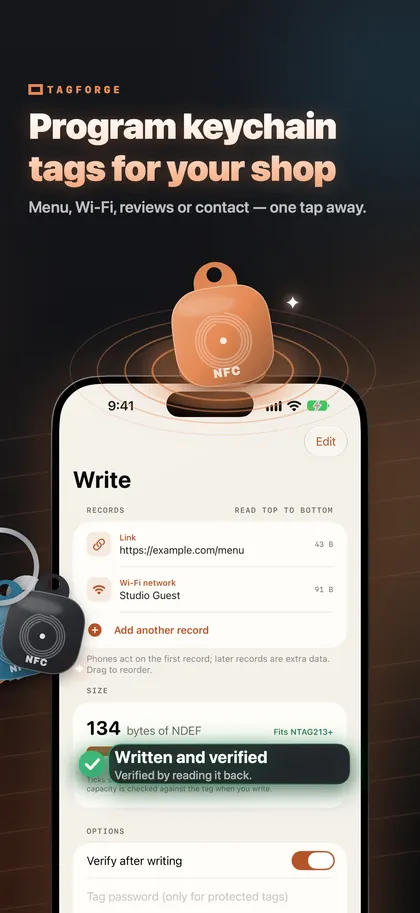
These steps use TagForge, which needs iOS 17 or later, so it runs on iPhone XS, XR, iPhone SE (2nd generation) and newer models. On iPhone 7, 8 or X, use another app that can write tags. Writing a Wi-Fi network or a contact card works the same way; only step 2 changes.
- Open TagForge and go to Write.
- Choose a record. For a link, choose a web link and type or paste the address. Other options include text, a Wi-Fi network, a contact card, a phone call, SMS, email, a map location, FaceTime and a Shortcut. You can also paste a Wi-Fi code, a contact card or a link that you copied earlier.
- Check the size meter. It shows how much memory the content needs and which tag it fits: NTAG213, 215 or 216. If the content is too large for your tag, shorten it or use a bigger tag.
- Turn on "Verify after writing". After writing, the app reads the tag back and checks that the data matches.
- Start writing and hold the tag. Touch the top edge of the back of the iPhone to the tag. That is where the antenna is. The range is only about 1–4 cm (under 1.5 in). Keep the phone and the tag still until the app confirms.
- Read the result. A verified write means the tag holds exactly what you wrote. If verification fails, write again. The error table below explains the common causes.
- Save it as a template if you plan to write the same content again later.
Do you need many tags, such as numbered tags for tables or equipment? The batch writer writes a numbered series, for example #001 to #100, using placeholders. It verifies each tag and skips tags that are already written.
Write several records on one tag
One tag can hold more than one record. Useful combinations:
- a web link plus a short text that explains what the tag is for
- a link to your website plus your contact card
- a web link plus a Wi-Fi network for people who scan with an app
Every record uses memory. The size meter adds all records together, so you see at once whether the combination still fits an NTAG213 or needs an NTAG215 or 216. Contact cards with several fields take a lot of space, and NTAG216 is a good fit for them.
Think about who will tap the tag. Without an app, iPhone XS, XR and later react to a web link, and to some phone, email and map links. They do not handle Wi-Fi networks or contact cards on their own. People who scan with an NFC app see every record. For a tag in a public place, one web link is the most reliable choice.
Test the tag before you attach it
Test the tag in its final position before you peel off the backing:
- Test without the app. Close the app, wake the screen and hold the top of the iPhone to the tag. On iPhone XS, XR and later, a web link shows a notification.
- Test on the real surface. Hold the tag in the exact place where you will attach it. Metal under the tag detunes it, and thick material between the phone and the tag can put it out of range.
- Scan it with the app. Check the memory used and the lock status.
- Try a second phone if you can, ideally one without any NFC app. It shows you what people without an app will see.
Lock the tag when you are done
An unlocked tag can be rewritten by anyone with an NFC app. That matters for tags in public places, where a stranger could replace your link. You have two options:
- Permanent lock. The tag becomes read-only forever. This cannot be undone, not even by you. TagForge asks you to type a confirmation before it locks.
- Password. NTAG213, 215, 216 and Ultralight EV1 support a 32-bit password. It stops casual overwriting, but it is not strong cryptography. If you forget the password, you cannot rewrite the tag.
Lock only after you have tested the tag. The details are in How to lock or password-protect an NFC tag.
Common write errors and fixes
| Problem | Likely cause | What to do |
|---|---|---|
| Content too large | The content needs more memory than the chip has | Shorten the link, remove a record or use an NTAG215 or 216 |
| Tag is read-only | The tag was permanently locked | This cannot be undone. Use a new tag |
| Tag reads but will not write | The tag is password protected | Enter the password. If it is lost, use a new tag |
| Tag lost during writing | The phone or tag moved, or a case or metal is in the way | Hold the top edge still, remove the case, use an on-metal tag on metal |
| Card cannot be read or written | MIFARE Classic chip, or a 125 kHz fob | Use NTAG tags instead |
| Verification fails | The tag moved during writing, or it is damaged | Write again. If it keeps failing, use another tag |
If the iPhone does not react to the tag at all, work through 12 fixes for NFC problems on iPhone.
FAQ
Can iPhone write NFC tags without an app?
No. iPhone XS, XR and later read tags on their own, but writing always needs an app. Any iPhone from iPhone 7 with iOS 13 or later can write tags with an app.
How many times can you rewrite an NFC tag?
NTAG213, 215 and 216 tags handle about 100,000 write cycles and keep their data for about 10 years. A permanently locked tag cannot be rewritten at all.
How long can a URL on an NFC tag be?
About 130 characters on an NTAG213, about 490 on an NTAG215 and about 860 on an NTAG216. Beginnings such as "https://www." are stored as one byte.
Which NFC tags work best with iPhone?
NTAG213, NTAG215 and NTAG216 are the safest choice for writing. iPhone also reads MIFARE Ultralight, MIFARE DESFire, ICODE SLIX and FeliCa. It cannot read MIFARE Classic or 125 kHz tags.