
NFC Business Cards: How They Work and How to Make One
How NFC business cards work, why a link to your profile page reaches more phones than a stored contact card, and how to make your own card with an iPhone.
An NFC business card is a card with a small NFC chip and antenna inside. When someone holds a phone near it, the phone reads what you stored on the chip: usually a link to your online profile page, or your details as a contact card (vCard). A link works on the widest range of phones, including iPhone without any app, so for most people it is the better choice.
You can make one yourself with a blank NFC card and an iPhone.
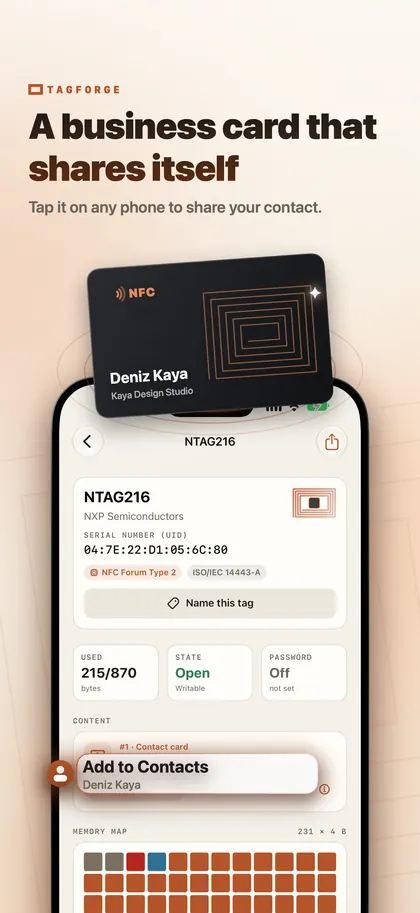
How an NFC business card works
Inside the card is an NFC chip, typically an NTAG213, NTAG215 or NTAG216, connected to a thin antenna. Depending on the chip, it stores between 144 and 888 bytes. A phone reads it from about 1–4 cm (under 1.5 in) away.
What the other person sees depends on what you stored and which phone they use:
- iPhone XS / XR and later read web links in the background. The screen must be on, and the phone must have been unlocked at least once since it was restarted. A notification appears, and the person taps it to open the link.
- iPhone 7, 8 and X do not read tags in the background. The person opens the NFC Tag Reader in Control Center (iOS 14 and later) or an NFC app.
- A contact card (vCard) record is not handled by any iPhone on its own. The person needs an NFC app that reads it.
Background reading also does not work while the Camera or Apple Pay is in use. If nothing happens, ask the person to close the Camera and hold the top of the phone against the card.
Contact card on the chip or link to a profile page?
| Contact card (vCard) on the chip | Link to a profile page | |
|---|---|---|
| iPhone XS / XR and later | Needs an NFC app | Opens from a notification, no app |
| iPhone 7, 8 and X | Needs an NFC app | NFC Tag Reader in Control Center, or an app |
| Internet needed | No | Yes |
| When your details change | Cards you handed out keep the old details | Edit the page, and every card shows the update |
| Chip | NTAG216 recommended | NTAG213 is enough |
| Privacy | Anyone who taps the card gets every field | You decide what the page shows |
Our recommendation: store a link. It works on the most phones, a page can show far more than a chip can hold, and you can update it after the cards are printed and handed out. If you also want the card to work without internet, add a contact card as a second record. Keep the link first, and use an NTAG216 card so both records fit.
How to make an NFC business card with your iPhone
You need a blank NFC card. The steps use TagForge, which needs iOS 17 or later (iPhone XS / XR, iPhone SE 2nd generation or newer). For a general walkthrough of writing tags, see how to write NFC tags with iPhone.
- Prepare the page. Publish your profile page and copy its link. Use your own domain with https if you can. Avoid public link shorteners: they hide the destination, so careful people and security tools treat them as a warning sign. The Link Shield check in TagForge flags them too.
- Add the link. Open the app, go to the Write tab and add a Link record with the page address.
- Add a contact card (optional). Add a Contact card record with your name, company, job title, phone, email and website. If you have a contact card copied already, use Paste. Keep the link as the first record.
- Check the size meter. A link alone fits on NTAG213. With a contact card, the meter usually asks for NTAG215 or NTAG216, depending on how many fields you fill in. NTAG216 leaves room to add fields later.
- Write and verify. Keep Verify after writing turned on. Start writing and hold the top of the iPhone flat against the card until the app confirms.
- Test on real phones. Try an iPhone XS or later with the screen on: a notification should appear. Then try an older iPhone with the NFC Tag Reader, and any other phone you can borrow.
- Lock the card. The link points to a page you control, so you can still change what people see after locking. That makes a permanent lock a good fit for cards you hand out. The app asks you to type a confirmation first, because a lock cannot be undone. If the card also holds a contact card that may change, set a password instead.
- Making cards for a team? Save the records as a template, then change the name and details for each person.
Choosing the card
- PVC cards are credit-card size, light and easy to print on both sides.
- Wood and bamboo cards look distinctive, with the chip and antenna inside.
- Metal cards look premium, but metal detunes normal NFC tags. The card must be built for this, so order a sample and test it with several phones before you order more.
- An NFC sticker on the back of your current paper card is a simple way to try the idea first.
Whatever the material, print two things on the card: a short note that shows where to tap, such as "Tap here with your phone", and a QR code with the same link. People who do not know NFC, or whose phones do not react, can scan the code instead. Our guide to NFC vs QR codes compares the two.
What to put on your profile page
- Your name, photo, job title and company.
- Your phone number and email address as links that start a call or an email.
- A "Save contact" button that offers your details as a contact file (.vcf).
- Links to your website, booking page, portfolio and the social profiles you use for work.
Keep the page fast and easy to read on a small screen. People often open it while standing in front of you, so put the most useful buttons at the top.
Privacy tips
- Anything on the chip can be read by anyone who holds a phone near the card, including someone who finds a card you lost. Do not store a home address or private number on it unless you are happy to share them.
- A contact card cannot be taken back once someone saves it. With a link, you can remove details from the page later, and every card you handed out shows the change.
- Check the profile service. If another company hosts your page, find out what it records about the people who open it.
- Protect the card from changes. A lock or a password stops anyone from replacing your link with a different one.
FAQ
Do NFC business cards work with iPhone?
Yes. iPhone XS / XR and later open a link from the card through a notification, without any app. iPhone 7, 8 and X can read it with the NFC Tag Reader in Control Center. A contact card stored on the chip needs an NFC app on every iPhone.
Does the other person need an app to read my NFC business card?
Not if the card holds a link and they use an iPhone XS / XR or later. On iPhone, an app is only needed for a contact card record. That is why a link, or a link plus a contact card, reaches the most people.
Can I make an NFC business card with my iPhone?
Yes, with a blank NFC card and an NFC writing app. The steps above use TagForge, which needs iOS 17 or later (iPhone XS / XR, iPhone SE 2nd generation or newer). Choose an NTAG216 card if you want room for a contact card.
Which NFC chip is best for a business card?
NTAG213 is enough for a link alone. For a link plus a contact card, choose NTAG216 so every field fits. Our NTAG comparison explains the sizes.