
NFC Not Working on iPhone? 12 Fixes That Work
iPhone not reading an NFC tag? Go through 12 fixes, from antenna position, screen and case to background limits, unsupported chips and empty tags.
If your iPhone is not reading an NFC tag, check three things first. Hold the top edge of the phone against the tag, make sure the screen is on, and make sure the tag holds a web link. If the tag is still not detected, go through the 12 fixes below in order. The first ones take a few seconds. The last one shows you exactly what is on the tag.
There is no NFC switch on iPhone, so there is nothing to turn on in Settings.
1. Hold the top of the iPhone against the tag
The NFC antenna is at the top edge of the iPhone, on the back, near the cameras. The range is only about 1–4 cm (under 1.5 in). Touch the top edge of the back to the tag and hold still for a moment. If you hold the middle of the phone over the tag, or move it past quickly, the read can fail.
2. Wake the screen, and unlock once after a restart
Background reading only works while the screen is on. A dark screen does not read tags. After a restart, background reading stays off until you unlock the iPhone once with your passcode.
3. Remove the case and keep metal away
Because the range is so short, a thick case, a wallet case or a metal plate for a magnetic mount can be enough to stop a read. Take the case off and try again.
The surface under the tag matters too. Metal detunes normal tags, so a sticker on a fridge, a car or a metal door may not respond. Use "on-metal" (anti-metal) tags in those places.
4. Know the limits of background reading
Background reading, where the iPhone reacts without an app, has limits:
- iPhone 7, 8 and X do not have it. Use an NFC app, or add NFC Tag Reader to Control Center (iOS 14 or later) and tap it before each scan.
- It pauses while the camera or Apple Pay/Wallet is in use. Close them and try again.
- It only shows a notification. Nothing opens until you tap the notification at the top of the screen.
For a model-by-model table, see How to use NFC on iPhone.
5. Check the chip: MIFARE Classic and 125 kHz will not work
iPhone cannot read MIFARE Classic. This chip is common in older access cards, hotel keys and gym fobs. iPhone also cannot see 125 kHz proximity cards and fobs (EM4100, HID Prox) at all, because they are not NFC. No app can change this.
If you want to use your phone instead of an access card, ask the building or the provider whether they offer Apple Wallet or mobile access. For your own projects, buy NTAG213, NTAG215 or NTAG216 tags.
6. Make sure the tag is not empty
A blank tag has nothing for the iPhone to show. If you just bought the tag, it may be blank. Background reading only reacts to content such as a web link, so an empty tag does nothing.
Scan it with an NFC app. If it is blank, write a link to it and test again: see How to write NFC tags with iPhone. If the app reports that the tag is not NDEF formatted, the tag is not set up to store links and records. The simplest fix is a new NTAG tag.
7. Wi-Fi and contact tags need an app
iPhone handles web links on its own, plus some phone, email and map links. It does not handle Wi-Fi records or contact cards (vCards). So a Wi-Fi tag can work on an Android phone, which joins by tapping, and do nothing on an iPhone. On iPhone, an app reads the Wi-Fi record, and then iOS asks "Join network?".
For guests with iPhones, a Wi-Fi QR code is a good alternative: the iPhone Camera understands it without any app. More in Share your Wi-Fi with an NFC tag.
8. Rule out a damaged tag
Tags can break. A sticker that was bent hard, or peeled off and stuck somewhere else, may stop responding. The quickest test is a second tag from the same pack. If the new tag works and the old one does not, replace the old one.
Normal use does not wear a tag out quickly. NTAG213, 215 and 216 tags handle about 100,000 write cycles and keep their data for about 10 years.
9. Restart and update the iPhone
Restart the iPhone, unlock it once, and try again. Then check Settings → General → Software Update. Some NFC features need a minimum iOS version: writing tags needs iOS 13, the NFC Tag Reader control needs iOS 14, and Run Immediately for NFC automations needs iOS 17.
10. Close other apps that are scanning
Background reading is not available while another app is scanning for tags. If an NFC app shows its scan sheet, finish or cancel the scan. Then wake the screen and tap the tag again.
11. Turn off Airplane Mode
Background reading is not available in Airplane Mode. Open Control Center and check the airplane icon. If it is on, turn it off and tap the tag again.
12. Test the tag in TagForge
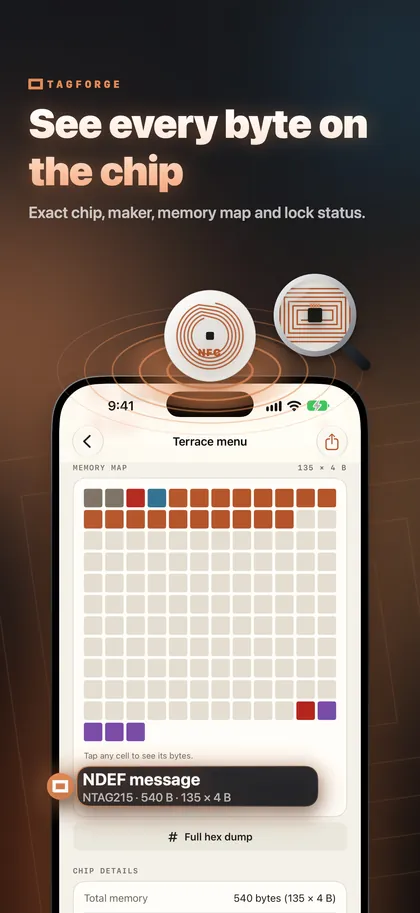
When the basics are fine and the tag still does not work, look inside it. TagForge needs iOS 17 or later, so it runs on iPhone XS, XR, iPhone SE (2nd generation) and newer models. On iPhone 7, 8 or X, use another NFC app. Open TagForge, tap Scan and hold the tag at the top of the iPhone. The report shows:
- Chip model and maker, for example "NTAG215 · NXP". This tells you what kind of tag you have.
- Memory used and total. This shows how full the tag is and whether new content will fit.
- Lock and password status. This explains why a tag can be read but not rewritten.
- Every record, decoded, plus a colour memory map and a full hex dump.
How to read the result:
- No records: the tag is blank. Write a link to it (fix 6).
- A Wi-Fi or contact record: iPhone does not handle it without an app (fix 7).
- A web link: the tag itself is fine. Check position, screen, case and the background limits (fixes 1–4, 10 and 11).
- Locked or password protected: you cannot change a locked tag at all, and a protected tag only with its password.
- No tag found at all: check the position and the case (fixes 1 and 3), the chip type (fix 5) and damage (fix 8).
If you found the tag in a public place, check its link with Link Shield before you open it. The check runs on the iPhone, and nothing is sent anywhere.
FAQ
How do I turn on NFC on my iPhone?
You cannot, and you do not need to. There is no NFC switch on iPhone. If tags do not work, the cause is one of the fixes above, not a setting.
Why does my iPhone not read my hotel key or gym fob?
Many hotel keys, gym fobs and older access cards use MIFARE Classic or 125 kHz technology. iPhone cannot read MIFARE Classic and cannot see 125 kHz cards at all. No app can change that.
Does NFC work when my iPhone is locked?
Yes, if the screen is on and the iPhone has been unlocked at least once since it was restarted. A dark screen does not read tags.
Why does my Wi-Fi NFC tag do nothing on iPhone?
iPhone does not handle Wi-Fi records on its own. Scan the tag with an NFC app, and iOS then asks "Join network?". A Wi-Fi QR code works with the iPhone Camera without an app.