
NFC Tags for Small Businesses: 12 Practical Ideas
12 practical NFC tag ideas for small businesses, from menus and Google reviews to Wi-Fi and asset labels, with what to write on each tag and where to put it.
NFC tags let customers and staff open the right page with one tap: your menu, your review page, your booking form. Most ideas below use a simple web link, because iPhone XS / XR and later open links from a tag without any app. For each idea, you will find what to write on the tag and where to put it.
Three rules before you start
- Use web links for customers. Recent iPhones read links in the background, but Wi-Fi networks and contact cards need an app on iPhone.
- Add a QR code and a short label. Print "Tap or scan" next to each tag, together with a QR code of the same link. It helps people with older phones and people who do not know NFC. Our comparison of NFC and QR codes explains why the pair works well.
- Use links on your own domain. Write links such as example.com/menu and redirect them on your website to the current page. You can then change where a tag leads without touching the tag, even after you lock it.
For one link, an NTAG213 sticker is enough. On metal surfaces, use on-metal tags.
12 ideas: what to write and where to put it
1. Menu
- Write: a link to your menu page. A mobile web page is easier to read on a phone than a large PDF.
- Place: on table stands, at the counter and on takeaway menus. When the menu changes, update the page, not the tag.
2. Google review link
- Write: the review link from your Google Business Profile.
- Place: where the visit ends: at the till, on the bill folder, by the exit. Ask, do not reward: check the review platform's rules before you offer anything in return.
3. Guest Wi-Fi
- Write: a Wi-Fi network record for your guest network, never the staff network.
- Place: at the counter, on tables and in the waiting area, next to a Wi-Fi QR code. Android phones join by tapping, but an iPhone needs an NFC app, so the QR code matters here. See our Wi-Fi tag guide.
4. Social media follow
- Write: a link to your main social profile, or to a page on your site that lists all of them.
- Place: at the counter, by the exit or at a photo spot in your shop.
5. Booking
- Write: a link to your online booking page.
- Place: at reception, on appointment cards and at each work station, such as a salon chair or treatment room, so customers can book the next visit before they leave.
6. Loyalty page
- Write: a link to your loyalty or stamp-card page.
- Place: at the till.
- Limit: a tag is not a stamp card. It gives everyone the same link every time, and anyone can share that link. The counting must happen in your loyalty system, for example after the customer signs in.
7. Product information and manuals
- Write: a link to the product page, manual, care instructions or setup video.
- Place: on the product, the packaging or the shelf edge. Use on-metal tags on metal products.
8. Warranty registration
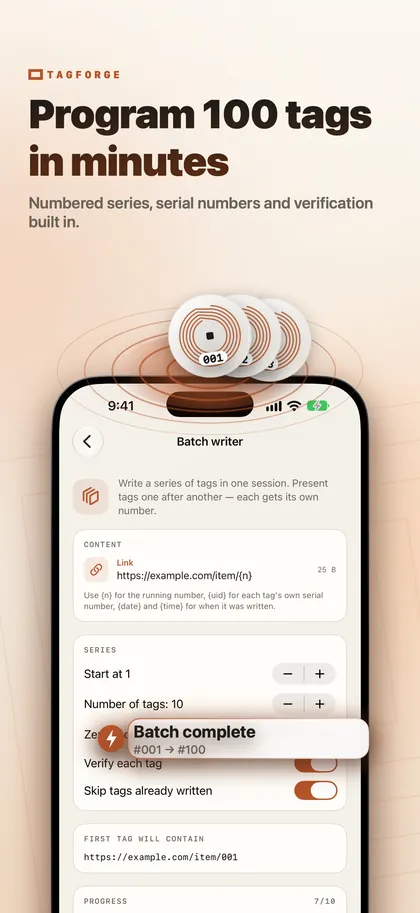
- Write: a link to your registration form. The batch writer can add a running number to each link, such as example.com/register?unit=001, so the form knows which unit it is.
- Place: inside the box lid, or on the product next to the model label.
- Limit: a number in a link is easy to guess, so do not treat it as proof of purchase.
9. Branded keychain tags
- Write: a link customers will use again and again: reordering, your loyalty page, opening hours or booking.
- Place: hand out keyfob tags to regular customers or members. Keyfobs are durable, and they stay on the customer's keys, ready for the next visit.
10. Event check-in
- Write: a link to your check-in form, or to the event page with the schedule.
- Place: on stands at the entrance. Use several tags side by side so guests do not wait in one line. Add the same link to name badges, so guests can open the schedule during the event.
11. Inventory and asset labels
- Write: the asset number as text, or a link to the item in your own system, such as example.com/asset/014. The batch writer numbers a whole series, from #001 to #100, in one session.
- Place: on laptops, tools, ladders and rental equipment. Use on-metal tags on metal tools.
- Tip: scan a tag with TagForge to see its number, and give it a name and a place in the Library, such as "Drill 014, Van 2". This is a simple labelling system, not a full stock-control system.
12. Staff instructions on equipment
- Write: a link to a short video, checklist or manual, for example how to clean the coffee machine or the closing routine.
- Place: on or next to the equipment, with on-metal tags on steel machines. Staff with iPhone XS or later can also use a tag to start a personal Shortcuts automation, such as a cleaning timer.
Writing many tags at once
Compose the content once in TagForge. For identical tags, such as a menu link for 30 tables, save it as a template or use Copy in the Tools tab. For numbered tags, use the batch writer. You present the tags one after another, each tag gets its own number (#001, #002 and so on), each one is verified, and tags already written in the batch are skipped. So you can write a whole box of stickers and keep the numbers in order.
Protect your tags in public
- Lock or password-protect every public tag. Anyone with an NFC app can rewrite an unprotected tag. A permanent lock makes it read-only forever. A password stops casual overwriting and still lets you change the tag later. With links on your own domain, a permanent lock is usually the simplest choice. Our guide on how to lock or password-protect a tag explains both.
- Check your tags with Link Shield. Scan your own tags from time to time. TagForge's Link Shield checks the link for warning signs, such as a raw IP address, plain http or look-alike characters, entirely on the iPhone.
- Look for stickers placed over yours. Real-world tag scams are mostly sticker swaps: a fake NFC tag or QR sticker placed over or next to a real one, leading to a phishing payment page. Check your tags and QR codes every morning, and print your logo around each tag so an extra sticker is easy to notice. Learn more about fake NFC and QR stickers.
FAQ
How do I make a Google review NFC tag?
Copy the review link from your Google Business Profile. Write it to an NTAG213 tag as a web link, test it with an iPhone and another phone, then lock the tag. Place it where the visit ends, for example at the till.
Do customers need an app to use NFC tags?
Not for links on iPhone XS / XR and later: a notification appears, and they tap it. On iPhone 7, 8 and X, they use the NFC Tag Reader in Control Center. Wi-Fi and contact card records need an app on iPhone, so add a QR code next to those tags.
Can someone change my business's NFC tags?
Anyone with an NFC app can rewrite an unprotected tag, so lock it or set a password. Also check regularly for fake stickers placed over your tags.